
The way to retrieve your license key(s) depends on the product and license type you are using:
- Amira 5.5 or older, Avizo 8.0 or older
- Amira 5.6 or newer, Avizo 8.1 or newer, node-locked activated licenses
- Amira 5.6 or newer, Avizo 8.1 or newer, floating activated licenses
- Amira 5.6 or newer, Avizo 8.1 or newer, node-locked manual licenses
- Amira 5.6 or newer, Avizo 8.1 or newer, floating manual licenses
- If you don’t know what kind of licenses you have…
How to find the License Keys for Amira 5.5 or older, Avizo 8.0 or older; Amira 5.6 or newer, Avizo 8.1 or newer, node-locked manual licenses; Amira 5.6 or newer, Avizo 8.1 or newer, floating manual licenses
Finding the product licenses activated on your computer is easy. For node-locked licenses, the License Keys are simple text strings included in a file named password.dat. There is a separate key for each product extension (Amira, Amira XMesh, Amira XImagePAQ, etc.). For example: License Amira 5.2 1-Jan-0 0 uixhs6ypzzfg “Example License” 002323aaddee License AmiraDicomReader 5.2 1-Jan-0 0 go3c63vyuia3 “Example License” 002323aaddee License AmiraMesh 5.2 1-Jan-0 0 yr9v4i5x4qi9 “Example License” 002323aaddee License AmiraMol 5.2 1-Jan-0 0 e8237chtgkw5 “Example License” 002323aaddee License AmiraSkel 5.2 1-Jan-0 0 s83a65jfi84r “Example License” 002323aaddee For floating licenses, the server hostname in password.dat will allow us to identify your licenses. For example: SERVER PANGOLIN-08 ANY USE_SERVER The password.dat file should be located in the share/license subdirectory of your product installation. For example: C:\Program Files\Amira-5.5.0\share\license C:\Program Files\Avizo-8.0.0\share\license In Amira or Avizo, you can access them directly from the menu Help>License Manager. The License Manager will pop up and you can access the License Keys directly in the included text window.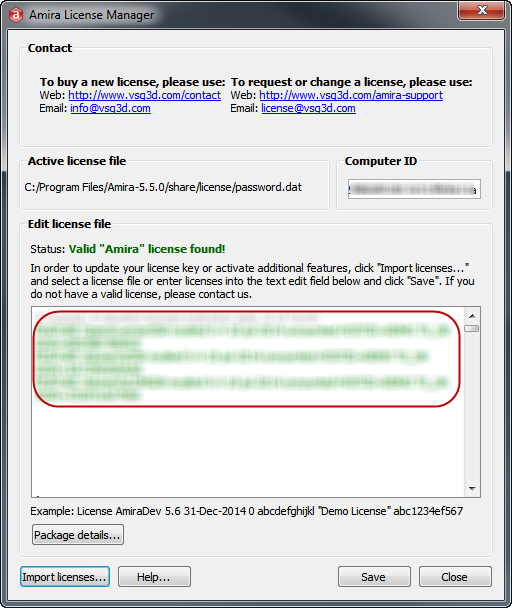
How to find the License Keys for Amira 5.6 or newer, Avizo 8.1 or newer, node-locked activated licenses
Start the product, select Help->License Manager. Click on “Activate Additional Extensions or Editions”.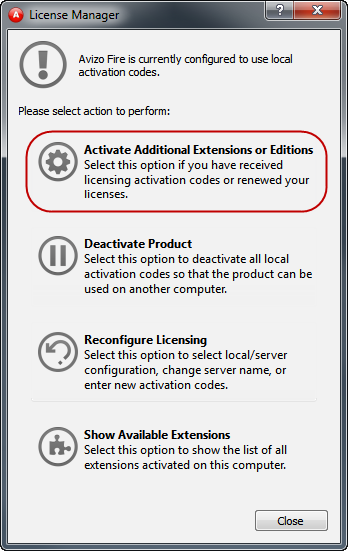
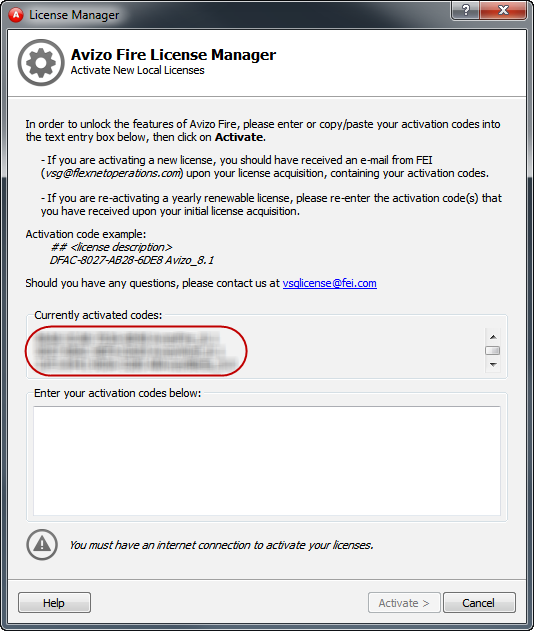
How to find the License Keys for Amira 5.6 or newer, Avizo 8.1 or newer, floating activated licenses
Licensing info is not available on the client system. On the server system, open a window, go to the directory FlexNetLicenseServerTools where the licensing tools are stored, and run “ServerFNOODActivation -v”. The activation codes are displayed.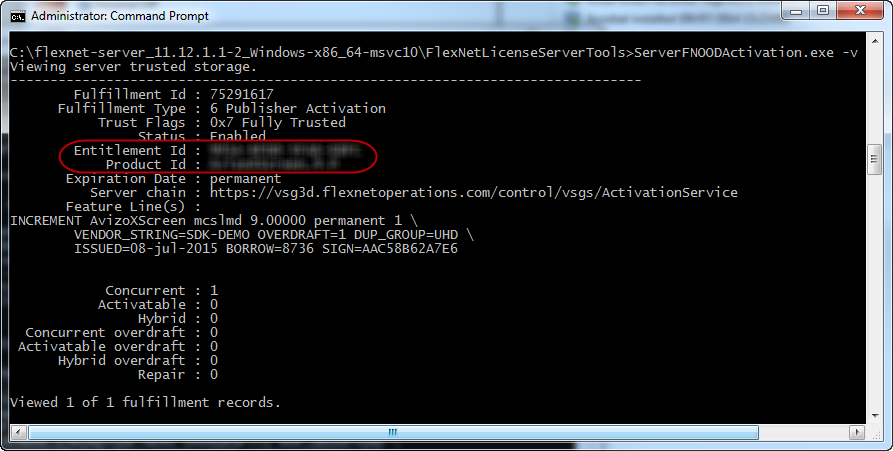

If you don’t know what kind of licenses you have…
Start the product, select Help->License Manager. If the License Manager mentions the license file, please refer to section related to manual licenses. If the License Manager mentions activation codes (“[Your product] is currently configured to use local activation codes”), please refer to section related to node-locked activated licenses. If the License Manager opens on the reconfiguration page (see below), with “Use FNP license server(s)” selected, please refer to section related to floating activated licenses.